
1
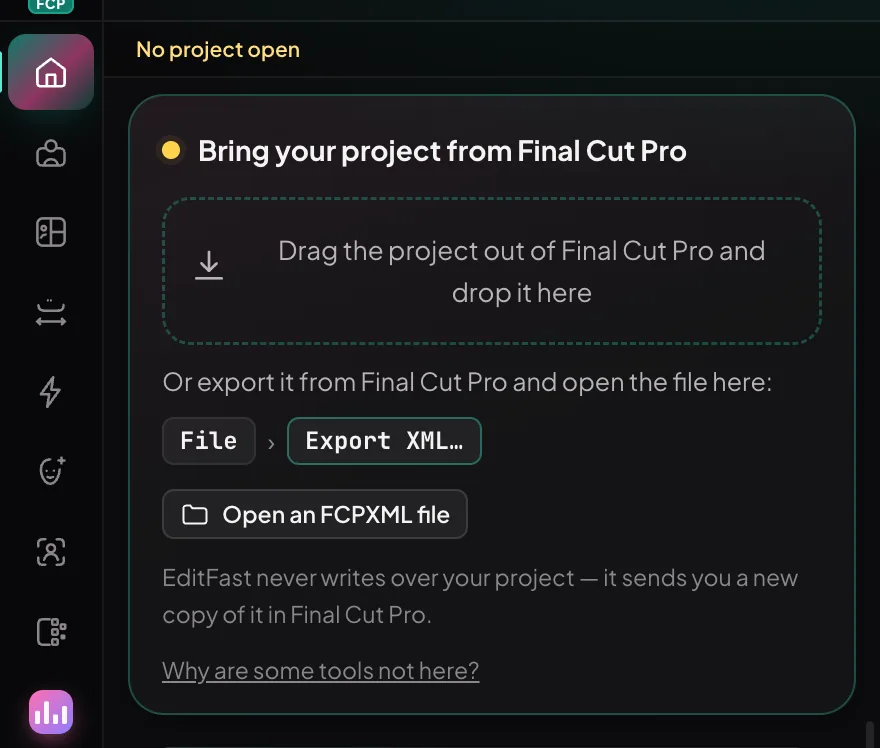
Bring the project
In Final Cut Pro, drag the project out of the browser and drop it on the EditFast window — or choose File → Export XML… and open the file in EditFast.
An app on your Mac that works beside Final Cut Pro: drag your project onto it, edit with the tools — cut the silences, Arabic captions, templates, split screen and more — and send it back to Final Cut Pro as a new project. Your own project is never changed.
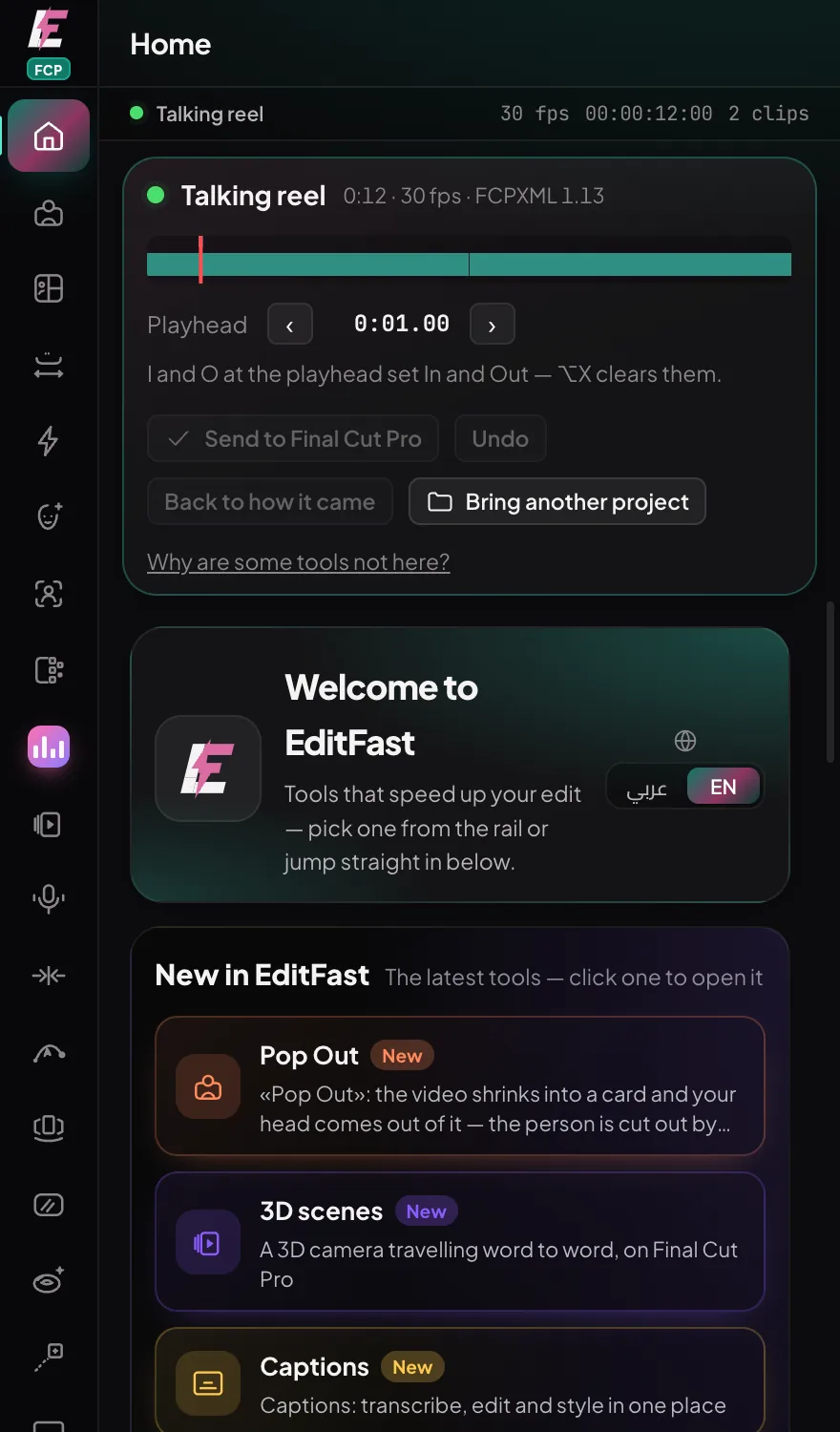 A real screen of the app
Final Cut Pro lets no other app change a project while it is open. So EditFast works on a copy and hands it back to Final Cut Pro as a new project — through FCPXML, Final Cut Pro’s own way in and out.
In Final Cut Pro, drag the project out of the browser and drop it on the EditFast window — or choose File → Export XML… and open the file in EditFast.
At the top is a strip of your timeline: click it to move the playhead, click a clip to select it, and I / O set In and Out just as in Final Cut Pro. Every change can be undone.
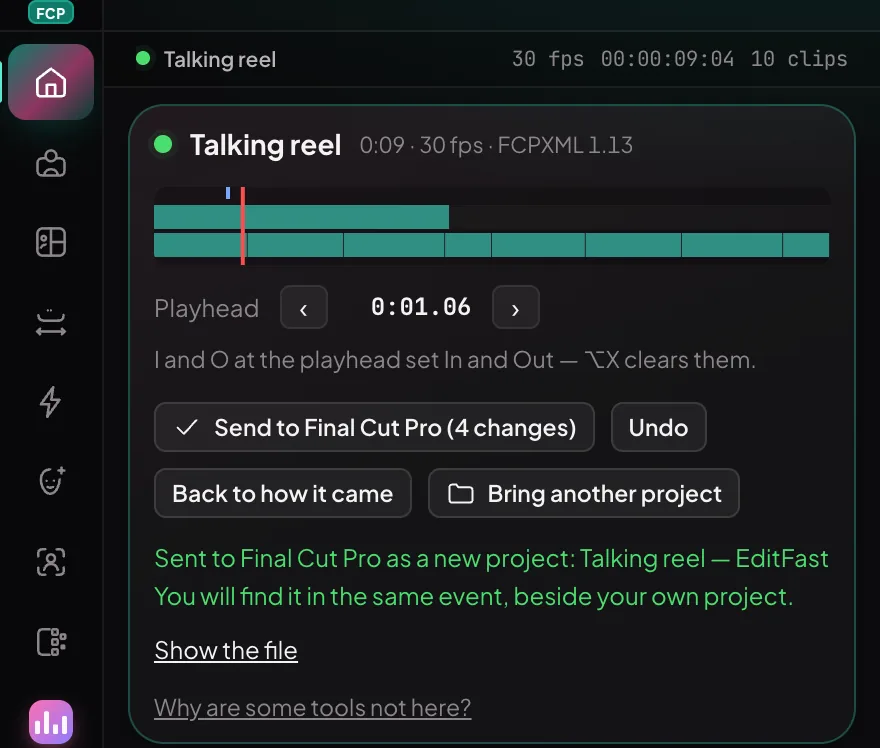
Press Send to Final Cut Pro: it opens in Final Cut Pro as a new project, «your project — EditFast», in the same event.
The same tools as the EditFast plugins, made to speak Final Cut Pro: what Final Cut Pro can edit afterwards — cuts, zooms, markers, its own captions — is written into the project itself; what is drawn — captions in animated styles, templates, pop out, glass — is rendered on your Mac and laid on the timeline as a clip of its own.
Finds the pauses and cuts them out of the storyline; the clips connected above are cut with them.
Zooms with the speech, as Transform keyframes you can still edit in Final Cut Pro.
The part you pick speeds up and slows down on a curve, laid as a film above the clip.
Something rides along with the person — as Position and Scale keyframes.
Switches between the cameras connected above the storyline. The camera on the storyline itself is never cut.
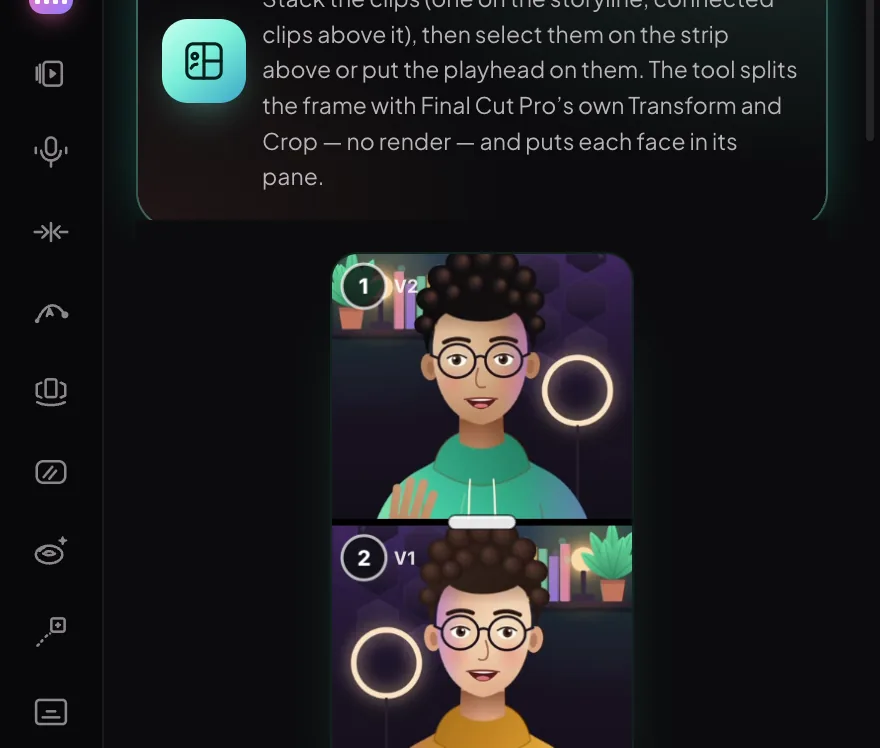
Several shots in one frame with Transform and Crop — editable in the Inspector, no render. No round corners, circles, border, shadow or animated way in and out.
Transcribed in your dialect, in many animated styles laid as transparent films — or Final Cut Pro’s own captions, from an SRT.
Arabic words stretch the way a calligrapher draws them, laid transparent above the clip.
Words that run along a line around the person.
Search what is said and put markers and chapter markers on the timeline.
Scenes, elements and 3D camera scenes, drawn on your Mac and laid as a transparent film — edit one in place, or take it off.
The video shrinks into a card and the head comes out of it.
The trend flash on the person, with its sound.
Your pictures turning in 3D — one layer above the video, one behind it.
3D glass shapes, drawn and laid above the clip.
Any picture or logo comes in and goes out in glowing pixels.
Apple-style glass over the video. Titles and effects under it are not seen through it.
Smoother skin and a cleaner face; the original comes back whenever you like.
From a picture, or from a whole clip — a transparent film above it.
Stock shots, laid where you ask.
The things you use most, one click away.
More than 2,100 sound effects in categories — one click and it is in.
Sound effects at the moments the speech calls for.
A sound effect from a description.
Your voice analysed on your Mac for free; the studio fix by AI takes credits. The new sound goes on its own lane and the original is only turned down, never deleted.
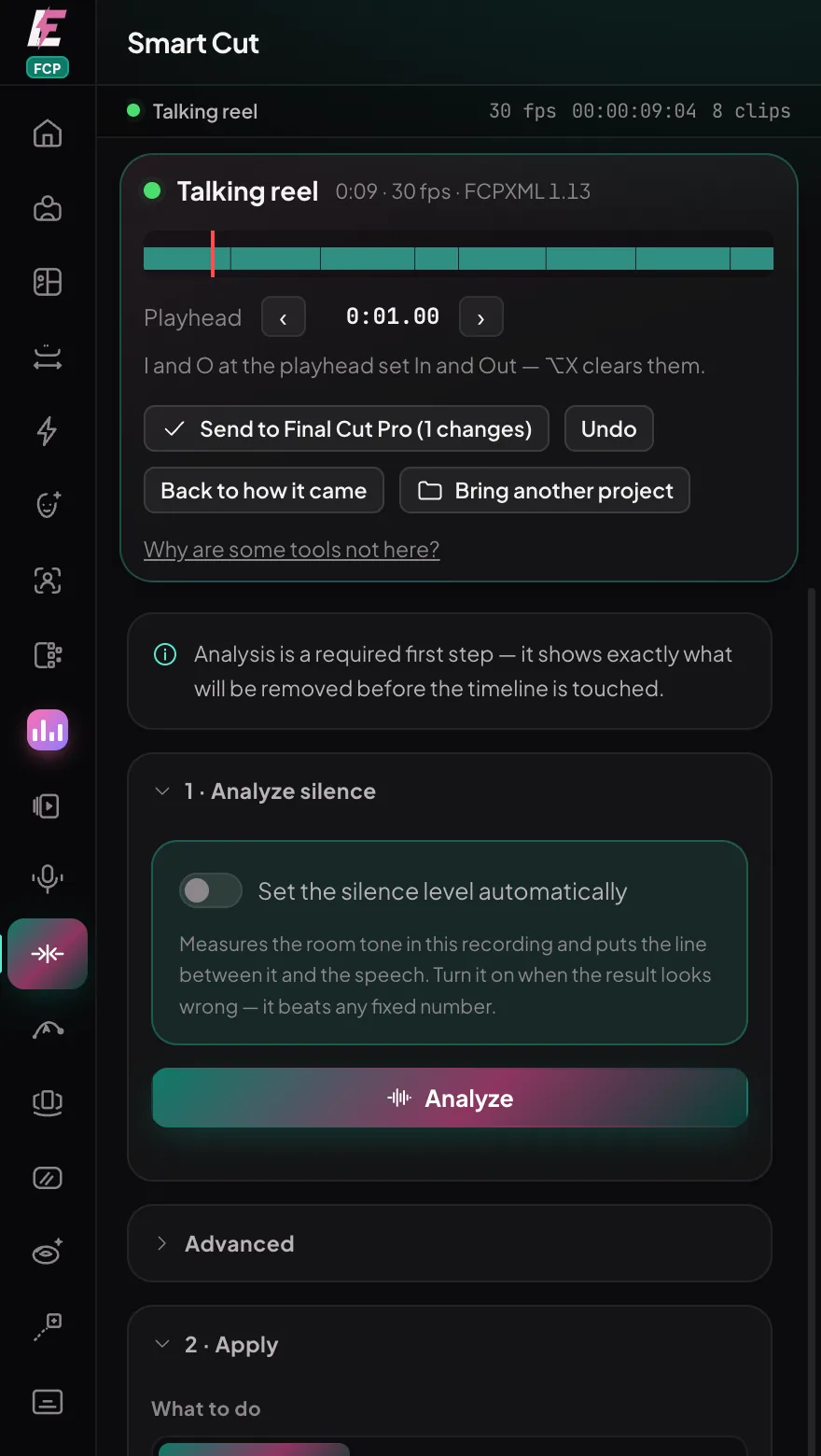
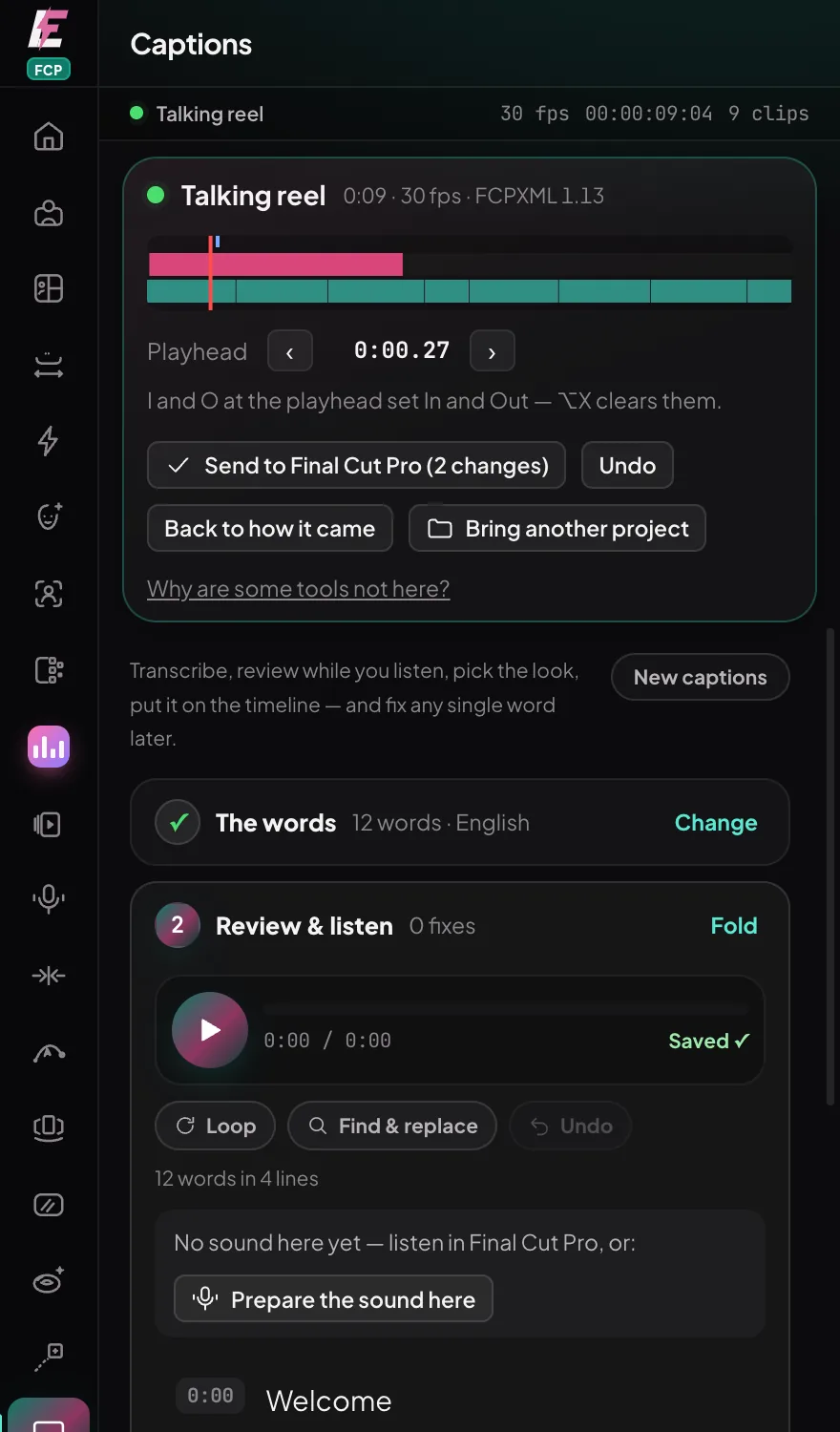
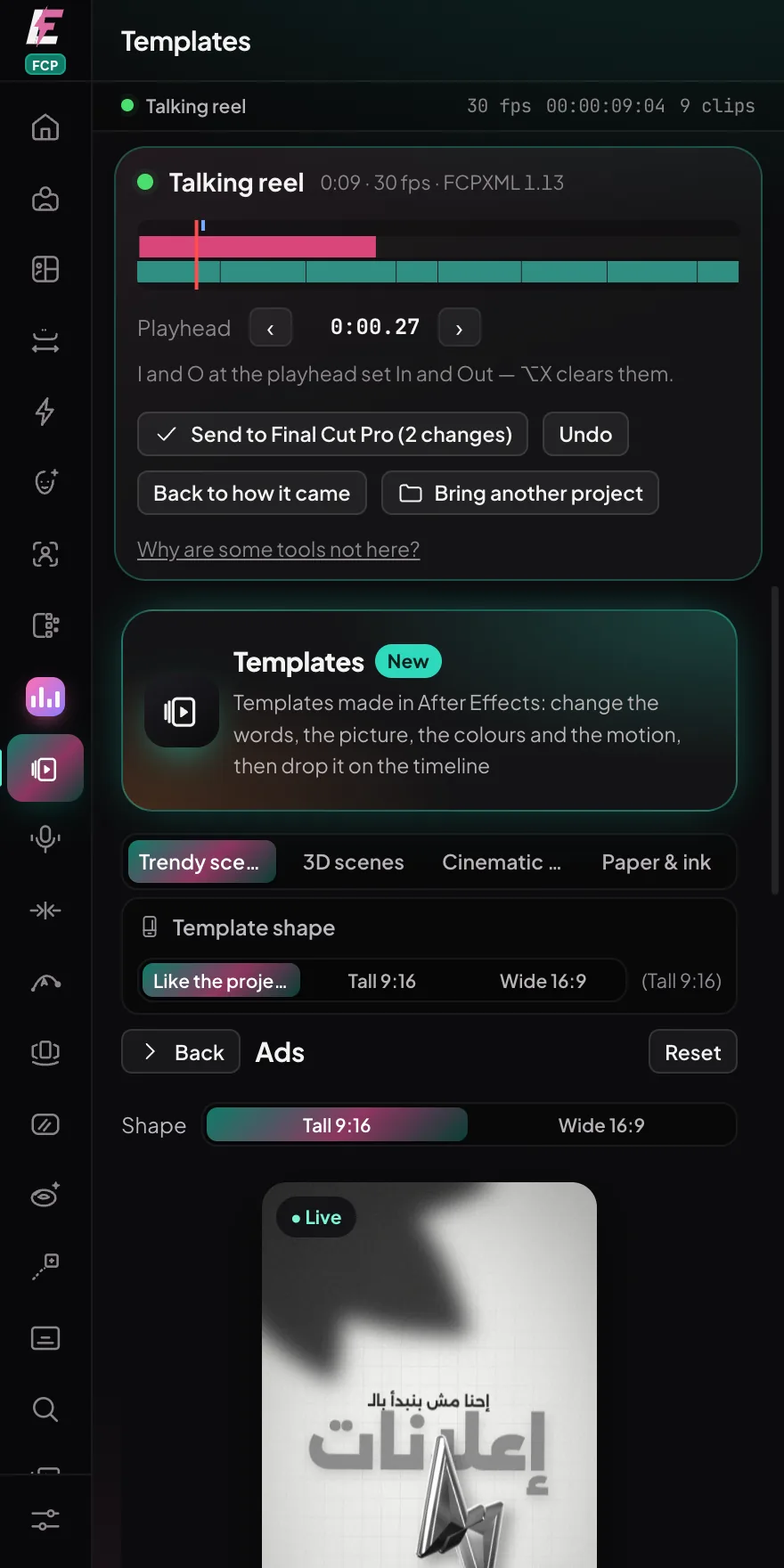
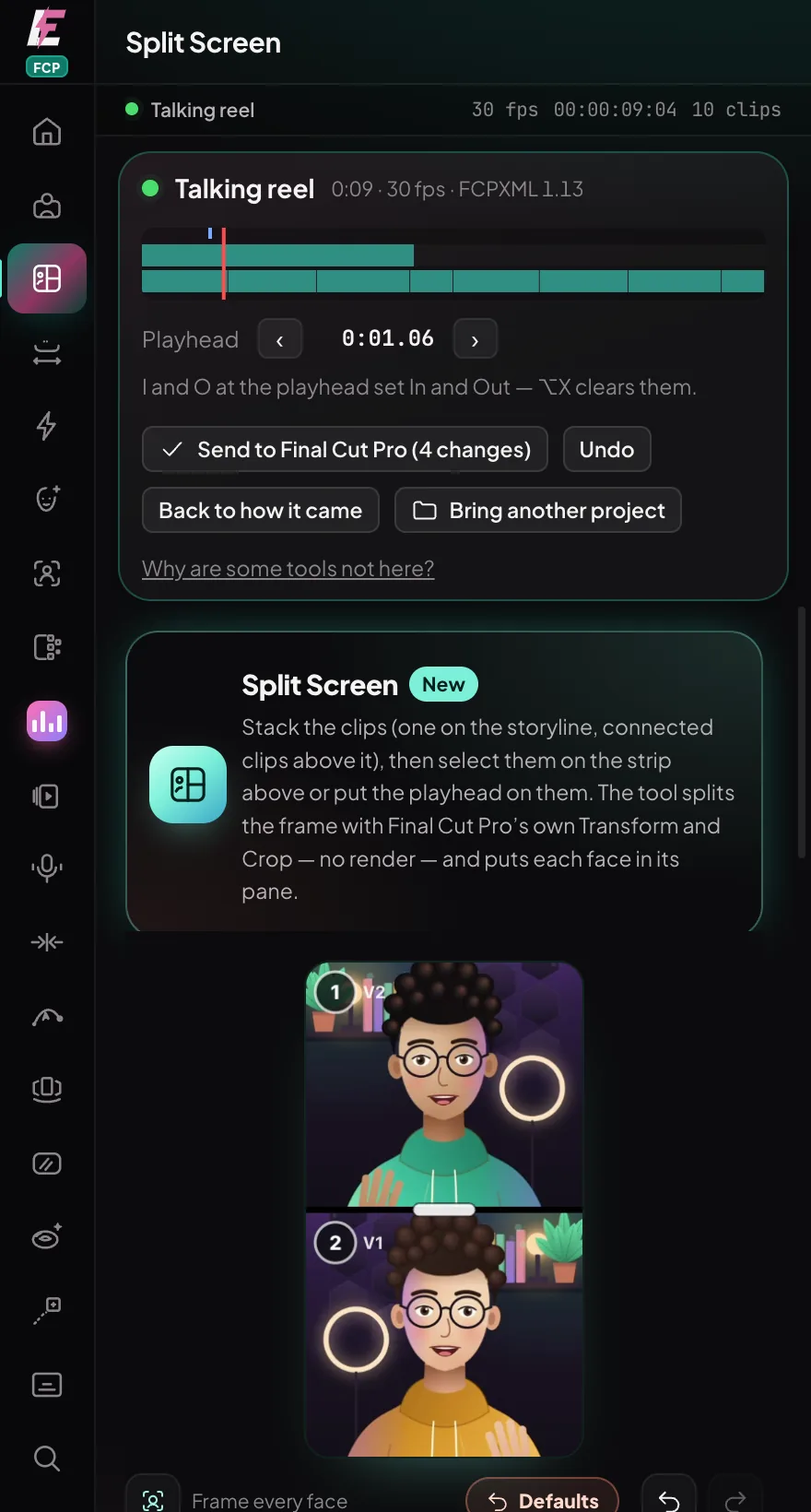
Real screens of the app. The person in the video is a drawing.
There is no cut-down tier and no full tier. Any term unlocks all twenty-five tools, with no usage caps at all.
No — an app on your Mac that works beside it. Final Cut Pro lets no other app change an open project, so EditFast takes the project as an FCPXML file (dragged out of the browser, or File → Export XML…), works on it, and hands it back to you as a new project.
No. EditFast never writes into the project it came from: it sends a new one, «your project — EditFast», beside yours in the same event. What it makes — captions, templates, transparent films — is kept in Documents → EditFast and linked to the new project.
Final Cut Pro from the App Store, the «Creator Studio» one included. It reads projects from Final Cut Pro 10.4.1 to 13, on macOS 11 or newer, Apple silicon and Intel.
That is Final Cut Pro’s own question for every file it is handed: pick the library your project is in and press Choose. The new project appears beside yours.
No — Final Cut Pro runs on the Mac alone. On Windows there are the Premiere plugin and the DaVinci Resolve app.
Not everything: the twenty-five tools above. EditFast AI, the motion gallery, the animated titles (Premiere’s MOGRTs), the users’ gallery, project cleanup, the motion presets, the motion graph and the safe zones are not in this version — the app itself says why when you ask it.
Each one has its own subscription, on the same account — so you sign in to all of them with the same email and password.
Yes. The animated captions are drawn on your Mac and laid as transparent films above the video, and Final Cut Pro’s own captions show Arabic right to left.
When there is one for you, its button is at the top of this page: 3 days free with every tool open. If you start it with your card, nothing is charged today, and if you do not cancel before it ends the plan you picked is charged automatically — cancel any time from your account. One trial per account and computer.
No. Your projects and footage stay on your Mac, and the tools draw on it. Transcription sends the audio only, and nothing is kept.
If something is technically wrong, talk to us first and we will try to fix it. If we cannot, you get a refund within the first 48 hours.
By card, and it switches on at once. From Egypt you can also transfer by InstaPay or a mobile wallet and enter the transaction reference; it switches on as soon as we have checked it.
Open Final Cut Pro, drag a project onto EditFast, and try any of the twenty-five tools.
Subscribe now