EditFast FC
The full guide

How to use EditFast with Final Cut Pro

EditFast for Final Cut Pro is an app on your Mac that works beside Final Cut Pro: you bring it the project, work on it with the tools, and send it back to Final Cut Pro as a new project — your own project is never changed. There are no keys to add: transcription, sound effects and B-roll run from EditFast itself the moment you sign in.

EditFast after installing, waiting for the project from Final Cut Pro

Installing on the Mac (once)

  1. Download the file from the download page and unzip all of it, leaving its folders as they are.
  2. Open Terminal (Spotlight → Terminal), type bash followed by a space, drag the file Install EditFast for Final Cut Pro.command into the window, and press Enter.
  3. It puts the app in Applications — the right one for your Mac, Apple silicon or Intel — and opens it.
bash (a space, then the installer)

If the Mac says the file is “damaged”, never press Move to Trash — use exactly the Terminal way above: it works on every macOS, with no password. The installer asks for no password either; if Applications cannot be written to, it uses your own Applications folder.
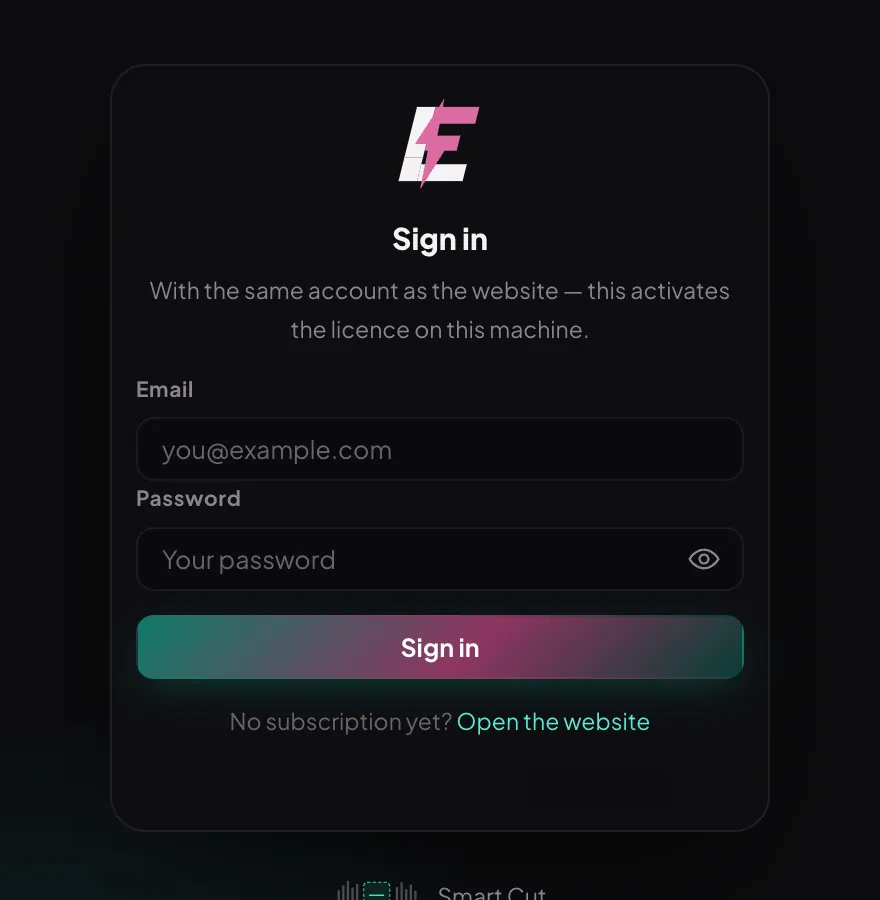
The sign-in screen of EditFast for Final Cut Pro

Signing in

  1. Sign in with the same email and password as the site — there is no licence key.
  2. The first time a tool needs it, the Mac may ask whether EditFast may reach Documents or the folder your videos are in: press OK / Allow. What EditFast makes is kept in Documents → EditFast.

The subscription is EditFast for Final Cut Pro’s own: a Premiere or a bundle subscription does not open it. One device per subscription — to move to another Mac, remove the old one from your account.

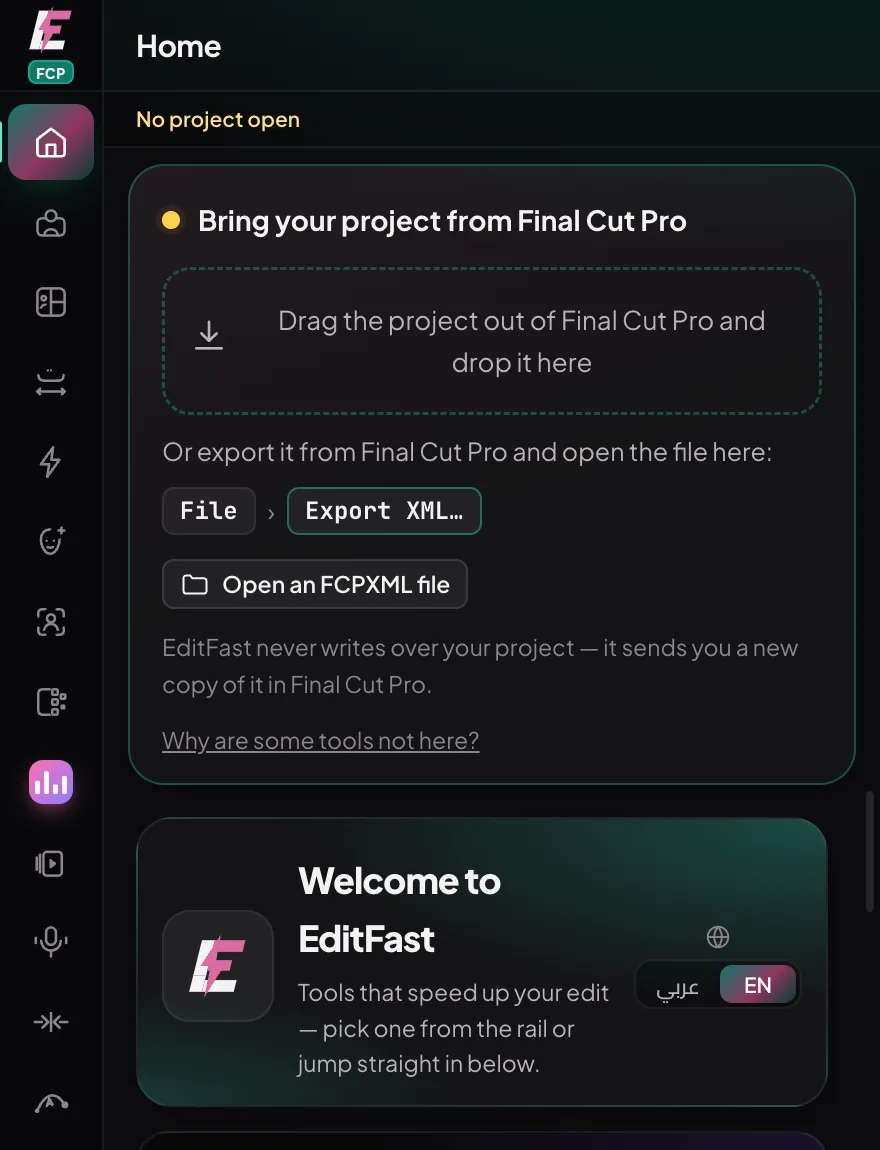
«Drag the project out of Final Cut Pro and drop it here» — and «Open an FCPXML file»

Bringing the project from Final Cut Pro

  1. In Final Cut Pro, drag the project out of the library (the browser) and drop it on the EditFast window.
  2. If the drag does not work: at the top of Final Cut Pro choose File → Export XML… and save the file, then in EditFast press Open an FCPXML file and choose it.
  3. A file with several projects in it asks which one to work on.

Work not sent yet is kept: if you quit, EditFast offers it back the next time the same project comes in.

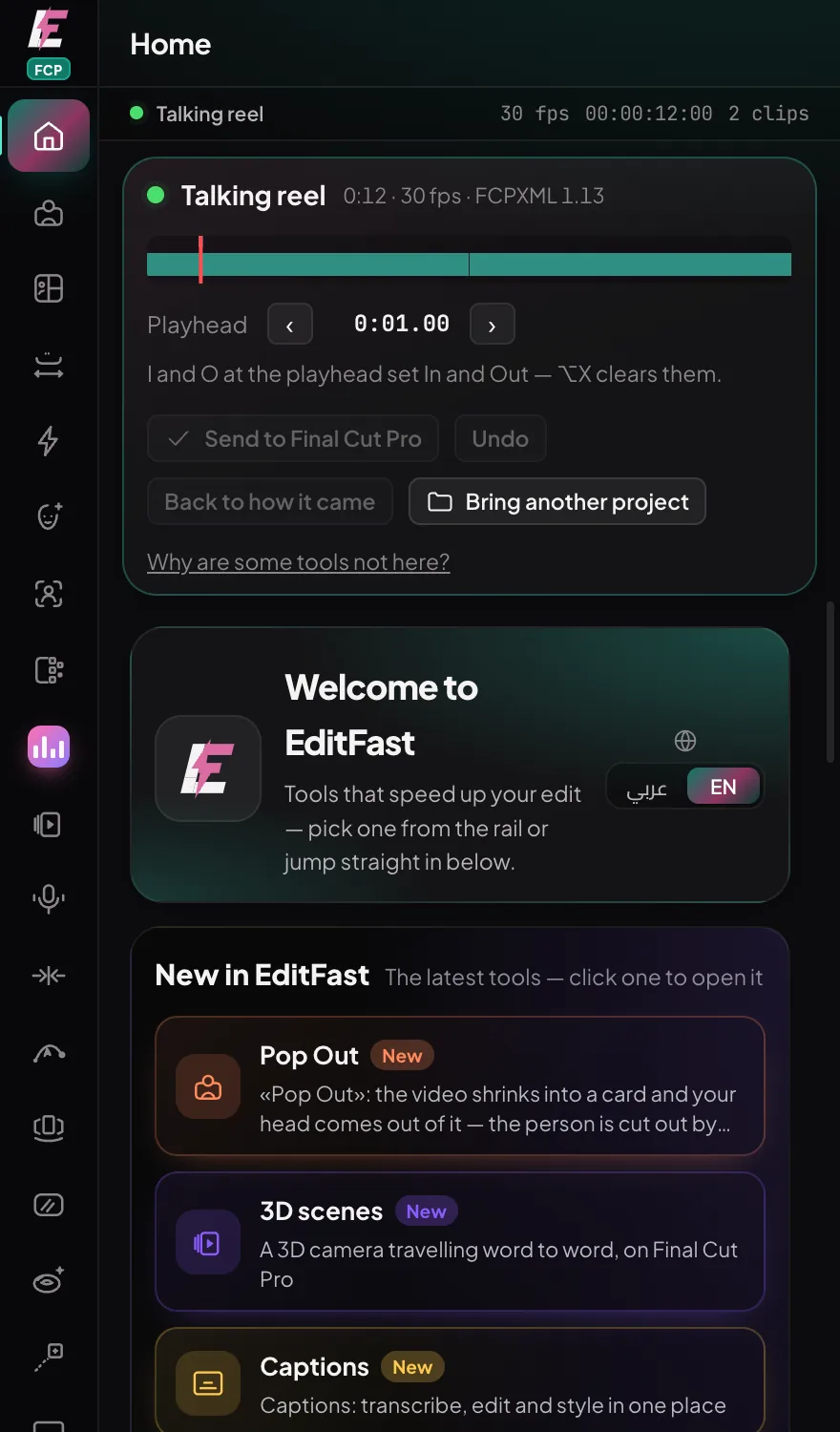
The project open in EditFast: the timeline strip with its playhead and clips

The timeline strip: playhead, selection, In and Out

  1. At the top of EditFast is a strip of your timeline. Click it, or drag on it, to move the playhead — the tools work where it is.
  2. Click a clip to select it; Shift (or ⌘) to select more.
  3. I and O set In and Out at the playhead, just as in Final Cut Pro, and Option+X clears them.
  4. If the project has a marker named EF, the playhead starts on it.

Every change can be undone step by step with Undo, or all at once with Back to how it came.

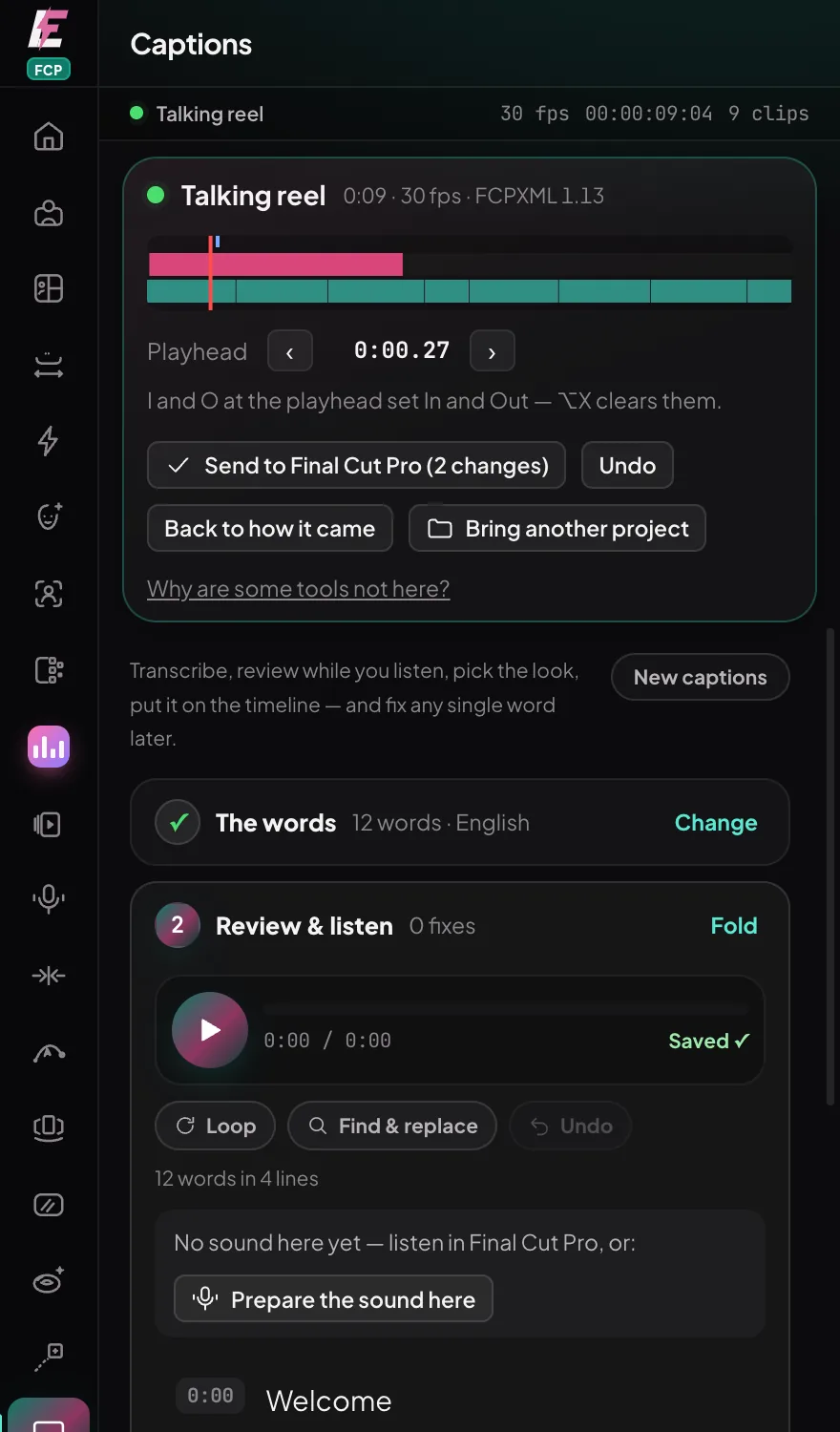
Captions in EditFast for Final Cut Pro: the words, each timed

Using the tools

  1. Pick a tool from the rail on the side or from the home: the twenty-five tools are the EditFast plugins’ own, made for Final Cut Pro.
  2. What Final Cut Pro can edit afterwards — cuts, zooms, tracking, markers, its own captions, split screen — is written into the project itself, and you can still change it in Final Cut Pro’s Inspector.
  3. What is drawn — the captions’ animated styles, templates, pop out, flash, glass, shapes — is rendered on your Mac and laid on the timeline as a clip of its own, above your clip; your clip is never deleted.

«Why are some tools not here?» on the card at the top lists what is not in this version, and why.

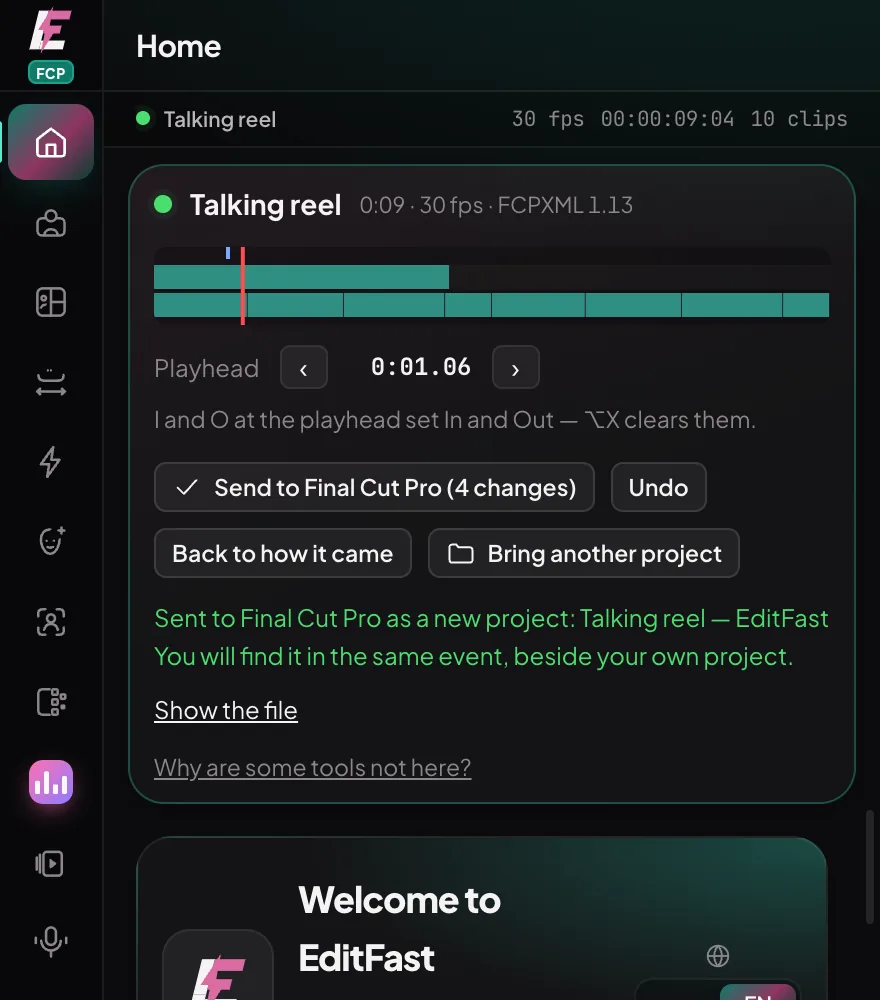
«Sent to Final Cut Pro as a new project» in EditFast

Sending it back to Final Cut Pro

  1. When you are done, press Send to Final Cut Pro on the card at the top (it counts your changes).
  2. Final Cut Pro opens and asks «Which library…»: pick the library your project is in and press Choose. It asks this for every file it is handed.
  3. A new project appears beside yours in the same event: «your project — EditFast». Your own project is never touched.

What EditFast made for it — captions, templates, films — sits in Documents → EditFast → your project, and Final Cut Pro links it into the library. Sent again later, it is another new project.

Troubleshooting

If something does not work

Press Cancel — never Move to Trash. Open Terminal, type bash and a space, drag «Install EditFast for Final Cut Pro.command» into the window and press Enter. Downloaded scripts that are double-clicked are stopped by macOS; run this way, they are not.

Close any message open in EditFast first, then try again. Or use File → Export XML… in Final Cut Pro and «Open an FCPXML file» in EditFast — that always works, for .fcpxml and .fcpxmld alike.

EditFast for Final Cut Pro has its own subscription: a Premiere or a bundle subscription does not open it. If you have just paid by transfer, it switches on within 30 minutes; if an hour has passed, talk to us.

A screenshot of the problem and the text of any message; your Final Cut Pro version (Final Cut Pro → About Final Cut Pro) and your macOS version; and this file — in Finder press Shift+⌘+G and paste the path:

~/Library/Application Support/EditFast FCP/host.log